Tags:
Showing posts with label Networking. Show all posts
Showing posts with label Networking. Show all posts
FREE Easy Wifi-Radar!
Download here: http://www.makayama.com/easywifiradar...
Some things in life should be free. Easy WiFi Radar helps you find and connect to open wireless access points with a single mouseclick. It's WiFi for Dummies. This video shows how you can use Easy WiFi Radar to get wireless broadband connections for free.
If you have ever tried to use Windows XP's built-in connection manager, you know what a hassle it can be to quickly check your mail or browse the web on the go. You need to browse through a list of access points, find one that you can connect to, manually try to connect to it, confirm the connection and then wait. Even if it says that's it connected, often it doesn't open a webpage or you mail will stall.
Easy WiFi Radar automates all of this. It's main goal is to let you get your mail or surf the web without having to go through all of the connection trouble, and without having to pull your creditcard. Just run it and it'll connect you for FREE to the internet. It doesn't get easier than this.
Tags:

Clearing up wireless interference problems!
Many wireless products, such as cordless phones, home networks, Bluetooth devices, and baby monitors, share the 2.4-gigahertz (GHz) radio frequency bands. As a result, they’re likely to interfere with each other. Interference can cause static on a cordless phone, a baby monitor, or wireless speakers; it can disrupt a wireless computer network or the video on a home security or baby monitor.
Here’s what you need to know to minimize interference in your household:
Make sure you can return the product. Before you buy a wireless product, be certain the store will let you exchange it, just in case you can’t get rid of interference problems.
Choose a cordless phone that uses the 5.8-GHz, 1.9-GHz, or 900-megahertz (MHz) band. These frequency bands are not as widely used as 2.4-GHz and, therefore, are less likely to cause or receive interference. If you want a multiple-handset-capable cordless phone with handset-conferencing capability, choose one that uses only the 5.8-GHz or 1.9 GHz band. By contrast, nearly all phones using 2.4-GHz digital spread spectrum (DSS) technology and those that allow handset conferencing may create interference in other products, some even in standby mode. Be aware that some cordless phones billed as 5.8-GHz actually use both the 5.8-GHz and 2.4-GHz bands. DSS phones billed as “wireless network friendly” or “802.11-friendly” are unlikely to interfere with wireless computer networks, but they may interfere with other wireless devices. Keep a 2.4-GHz analog phone out of the kitchen, if possible. It can pick up interference from a microwave oven that’s running.
Change the channel. Most wireless products allow you to change their channels to solve interference problems. Cordless phones, baby monitors, and wireless speakers make this as easy as pushing a button or sliding a switch. Changing channels on a wireless router requires using your computer. Avoid the router’s uppermost and lowest channels if you have a 2.4-GHz analog phone.
Keep your distance. If channel changes don’t work and product replacement is not an immediate option, try keeping the conflicting wireless devices as far away from each other as possible, such as in different rooms.
Best Free TCP Settings Tweaker!
Best Free TCP Settings Tweaker
Whether you use a modem or broadband, you’ll get a faster connection if you tweak your connection’s TCP parameters. Among the most important of these is MaxMTU which, in simple terms, needs to be set to the largest value possible without your data being broken up into smaller chunks en-route. Most techies determine MaxMTU by trial and error pinging using different packet sizes but it’s a tedious procedure and definitely not for beginners. TCPOptimizer from SpeedGuide.net is a free utility that will do the job for you automatically. Furthermore, it will use this value to advise you on your other TCP settings and then apply these values at the press of the button. There are commercial programs that will do much the same thing but TCPOptimizer does it just as well and is totally free. The only minus is the lack of in-program help however you’ll find a useful FAQ at the SpeedGuide site. (225KB)
http://www.speedguide.net/downloads.php
http://www.speedguide.net/faq_in.php?category=100
Killer Custom host file BlockList!
What it does …
The Hosts file contains the mappings of IP addresses to host names. This file is loaded into memory (cache) at startup, then Windows checks the Hosts file before it queries any DNS servers, which enables it to override addresses in the DNS. This prevents access to the listed sites by redirecting any connection attempts back to the local machine. Another feature of the HOSTS file is its ability to block other applications from connecting to the Internet, providing the entry exists.You can use a HOSTS file to block ads, banners, 3rd party Cookies, 3rd party page counters, web bugs, and even most hijackers. This is accomplished by blocking the connection(s) that supplies these little gems.Example - the following entry 127.0.0.1 ad.doubleclick.net blocks all files supplied by that DoubleClick Server to the web page you are viewing. This also prevents the server from tracking your movements. Why? … because in certain cases “Ad Servers” like Doubleclick (and many others) will try to open a separate connection on the webpage you are viewing.
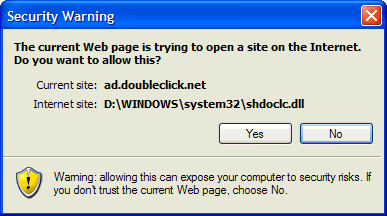
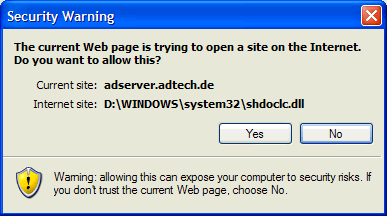
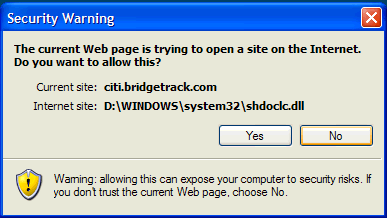
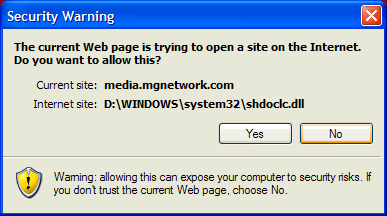
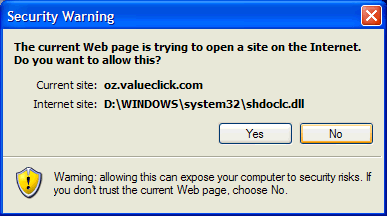
For XP SP2 users you should see a Security Center prompt about allowing this connection. [screenshot]
Simply click No and continue. Yes the prompts can be annoying but at least you’ll know, however you should not see these prompts if these entries are included in the HOSTS file.
Note: this prompt only occurs if (example) *.doubleclick.net is included in the “Restricted Zone“.More Examples
AdTech | BridgeTrack | Honesty | Mgnetwork | ValueClick | Google AdSense | Atdmt | Atdmt
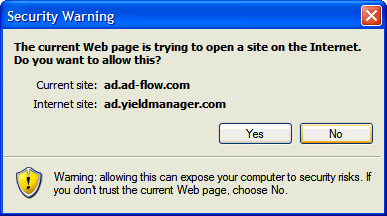
Now here is a 3rd party ad server opening a connection to another 3rd party ad server - Ad-Flow
More 3rd parties opening other 3rd parties: Overture | Overture | Directtrack | Directtrack | RealMediaNote: By placing these type sites in the Restricted Zone this also cures most “Back Button” issues.
Now includes most major parasites, hijackers and unwanted Adware/Spyware programs!
Proudly now the #1 rated HOSTS file on the Internet! - Google | MSN | Yahoo | AltaVista
Now regularly featured on the Kim Komando Radio Show
The MVPS HOSTS file has been selected by Pricelessware as “the best of the best in Freeware“In many cases using a well designed HOSTS file can speed the loading of web pages by not having to wait for these ads, annoying banners, hit counters, etc. to load. This also helps to protect your Privacy and Security by blocking sites that may track your viewing habits, also known as “click-thru tracking” or Data Miners. Simply using a HOSTS file is not a cure-all against all the dangers on the Internet, but it does provide another very effective “Layer of Protection”.
Editors Note: As time has progressed the focus of this project has changed from just blocking ads/banners to protecting the user from the many parasites that now exist on the Internet. It doesn’t serve much purpose if you block the ad banner from displaying as most other HOSTS files do, but get hijacked by a parasite from an evil exploit or download contained on the web site. The object is to surf faster while preserving your Safety, Security and Privacy. [more info]
To view the HOSTS file in plain text form. (633 kb) (opens in IE)
Note: The text version also makes a terrific reference for determining possible unwanted sites
Download: hosts.zip [right-click - Select: Save Target As] [Updated 12-10-07]This download includes a simple batch file (mvps.bat) that will rename the existing HOSTS file to HOSTS.MVP then copy the included updated HOSTS file to the proper location. For more information please see the readme.txt included in the download.
Important! Windows Vista requires special instructions
" width="22" align="bottom" border="0" height="17"> see here
When you run the (mvps.bat) batch file XP users may see a prompt, simply click Run and continue. Once updated you should see another prompt that the task was completed. Some users may see a pop-up from certain Security programs about changes to the HOSTS file. Allow the change … however if you see this pop-up at any other time … investigate.
Download Information: (checksum info is on the HOSTS file not the “hosts.zip”)
MD5: 760ea5bd4996887949190ea60688377c SHA-1: 01c231d891f22d0a531d3177116a3f7abfdc323a
(created by File Checksum Integrity Verifier) To view Checksum for this downloadManual Method - Unzip in a “temp” folder and place in the appropriate installed location:
- If you are having trouble downloading or extracting the HOSTS file
Note: the below locations are for the typical default paths, edit as needed.
Windows Vista = C:\WINDOWS\SYSTEM32\DRIVERS\ETC Windows XP = C:\WINDOWS\SYSTEM32\DRIVERS\ETC Windows 2K = C:\WINNT\SYSTEM32\DRIVERS\ETC Win 98/ME = C:\WINDOWS There is no need to turn on, adjust or change any settings with the exception of the DNS Client service (see below). Windows automatically looks for the existence of a HOSTS file and if found, checks the HOSTS file first for entries to the web page you just requested. The 127.0.0.1 is the location of your computer, so when the entry (example) “ad.doubleclick.net” is requested your computer thinks 127.0.0.1 is the location of the file. When this file is not located it skips onto the next file and thus the ad server is blocked from loading the banner, Cookie, or some unscrupulous ActiveX, or javascript file.
In case you’re wondering … this all happens in microseconds, which is much faster than trying to fetch a file from half way around the world. Another great feature of the HOSTS file is that it is a two-way file, meaning if some parasite does get into your system (usually bundled with other products) the culprit can not get out (call home) as long as the necessary entries exist. This is why it’s important to keep your HOSTS file up to Date. Subscribe to a secure mailing list
Editors Note: in most cases a large HOSTS file (over 135 kb) tends to slow down the machine. This only occurs in W2000/XP/Vista. Windows 98 and ME are not affected.
To resolve this issue (manually) open the “Services Editor”
- Start | Run (type) “services.msc” (no quotes)
- Scroll down to “DNS Client”, Right-click and select: Properties
- Click the drop-down arrow for “Startup type”
- Select: Manual, or Disabled (recommended) click Apply/Ok and restart. [more info]

When set to Manual you can see that the above “Service” is not needed (after a little browsing) by opening the Services Editor again, scroll down to DNS Client and check the “Status” column. It should be blank, if it was needed it would show “Started” in that column. There are several Utilities that can reset the DNS Client for you … [more info]
Editors Note: The above instructions are intended for a single (home-user) PC. If your machine is part of a “Domain”, check with your IT Dept. before applying this work-around. This especially applies to Laptop users who travel or bring their machines home. Make sure to reset the Service (if needed) prior to connecting (reboot required) to your work Domain …
JBF sends along this Tip: IPCOP running a DHCP server needs the local PC DNS Client enabled to function.

Reset the DNS Client with a simple batch file (submitted by: Ronny Ong - 2K/XP only)
DnsManual.bat (resets the DNS Client to Manual) [right-click and select: Save Target As]
DnsDisabled.bat (resets the DNS Client to Disabled) [right-click and select: Save Target As]
To use: double-click on the downloaded file and reboot that’s it.
What is svchost.exe And Why Is It Running?
You are no doubt reading this article because you are wondering why on earth there are nearly a dozen processes running with the name svchost.exe. You can’t kill them, and you don’t remember starting them… so what are they?
So What Is It?
According to Microsoft: “svchost.exe is a generic host process name for services that run from dynamic-link libraries”. Could we have that in english please?
Some time ago, Microsoft started moving all of the functionality from internal Windows services into .dll files instead of .exe files. From a programming perspective this makes more sense for reusability… but the problem is that you can’t launch a .dll file directly from Windows, it has to be loaded up from a running executable (.exe). Thus the svchost.exe process was born.
Why Are There So Many svchost.exes Running?
If you’ve ever taken a look at the Services section in control panel you might notice that there are a Lot of services required by Windows. If every single service ran under a single svchost.exe instance, a failure in one might bring down all of Windows… so they are separated out.
Those services are organized into logical groups, and then a single svchost.exe instance is created for each group. For instance, one svchost.exe instance runs the 3 services related to the firewall. Another svchost.exe instance might run all the services related to the user interface, and so on.
So What Can I Do About It?
You can trim down unneeded services by disabling or stopping the services that don’t absolutely need to be running. Additionally, if you are noticing very heavy CPU usage on a single svchost.exe instance you can restart the services running under that instance.
The biggest problem is identifying what services are being run on a particular svchost.exe instance… we’ll cover that below.
If you are curious what we’re talking about, just open up Task Manager and check the “Show processes from all users”
Checking From the Command Line (Vista or XP)
If you want to see what services are being hosted by a particular svchost.exe instance, you can use the tasklist command from the command prompt in order to see the list of services.
tasklist /SVC
tasklist /SVC | more
show all list
The problem with using the command line method is that you don’t necessarily know what these cryptic names refer to.
Using Process Explorer in Vista or XP. You can use the excellent Process Explorer utility from Microsoft/Sysinternals to see what services are running as a part of a svchost.exe process. Hovering your mouse over one of the processes will show you a popup list of all the services:

Or you can double-click on a svchost.exe instance and select the Services tab, where you can choose to stop one of the services if you choose.
Disabling Services
Open up Services from the administrative tools section of Control Panel, or type services.msc into the start menu search or run box. Find the service in the list that you’d like to disable, and either double-click on it or right-click and choose Properties. Change the Startup Type to Disabled, and then click the Stop button to immediately stop it.
You could also use the command prompt to disable the service if you choose. In this command “trkwks” is the Service name from the above dialog, but if you go back to the tasklist command at the beginning of this article you’ll notice you can find it there as well.
sc config trkwks start= disabled
This only works in XP Pro and Vista!
Here is a FREE program to do this on windowsXP/Vista. It allows you to do service profiles so you can switch from one profile to another on the fly. Instantly clearing up resources. Even gives a graphical view of the services and their memory footprint.
Via - [http://www.howtogeek.com/]
Ip explained short version!
IP ADDRESS STRUCTURE:
Note: the terms multicast address and MSB are explained at the end.
Every station on a PSN (packet switched network) that is based on the TCP/IP
protocol (your computer is one, for example. Yes, we’re referring to a host
that is connected to the net) must have an IP address, so it can be identified,
and information can be relayed and routed to it in an orderly fashion.
An IP address consists of a 32 bit logical address. The address is divided
into two fields:
1) The network address:
Assigned by InterNIC (Internet Network Information Center).
In fact most ISPs (internet service providers) purchase a number of addresses
and assign them individually.
2) The host address:
An address that identifies the single nodes throughout the network. It can be assigned
by the network manager, by using protocols for it such as DHCP, or the workstation itself.
[The IP networking protocol is a logically routed protocol, meaning that address 192.43.54.2
will be on the same physical wire as address 192.43.54.3 (of course this is not always true. It depends on the
subnet mask of the network, but all of that can fill a text of its own)
IP address structure:
—.—.—.—
^ ^
| |
network | host
Every ” — ” = 8 bits.
The first bits ===> network address
The last bits ===> host address.
with 8 bits you can present from 0-255 . (binary=(2 to the power of 8)-1)
Example:
11000010.01011010.00011111.01001010 (binary)
194.90.31.74 (decimal)
IP address CLASSES :
We can classify IP addreses to 5 groups. You can distinguish them by comparing the “High Order” bits (the first four bits on the
left of the address):
type | model | target | MSB |addr.range |bit number| max.stations|
| | groups | | |net./hosts| |
——|——–|——–|—–|————–|———-|————-|
A |N.h.h.h | ALL | 0 | 1.0.0.0 | 24/7 | 16,777,214 |
| | ACCEPT | | to | | |
| | HUGE | | 127.0.0.0 | | |
| | CORPS | | | | |
———————————————————————–
|N.N.h.h | TO ALL | 10 | 128.1.00 | 16/14 | 65,543 |
B | | LARGE | | to | | |
| | CORPS | | 191.254.00 | | |
———————————————————————–
|N.N.N.h |TO ALOT | 110 | 192.0.1.0 | 8/22 | 254 |
C | |OF | | to | | |
| |SMALL | | 223.225.254 | | |
| |CORPS | | | | |
———————————————————————–
D | NONE |MULTI-CA|1110 | 224.0.0.0 | NOT FOR | UNKNOWN |
| |ST ADDR.| | to | USUAL | |
| |RFC-1112| |239.255.255.255| USE | |
———————————————————————–
E | NOT FOR|EXPERIME|1,1,1,1| 240.0.0.0 |NOT FOR| NOT FOR USE|
| USE |NTAL | | to |USE | |
| |ADDR. | |254.255.255.255| | |
———————————————————————–
N=NETWORK , h=HOST .
Notice the address range 127.X.X.X.
These addresses are assigned to internal use to the network device, and are
used as an application tool only. For example: 127.0.0.1, the most common one,
is called the loopback address - everything sent here goes directly back to
you, without even traveling out on the wire.
Also, some IPs are reserved for VPNs - Virtual Private Networks. These are
local area networks over wide area networks that use the Internet Protocol to
communicate, and each computer inside the network is assigned with an IP
address. So, suppose a certain computer wants to send a data packet to
another host on the network with the IP ‘x’, but there’s also another host on
the Internet that has the same IP - what happens now? So this is why you
cannot use these and other forms of reserved IPs on the Internet.
EXTRA:
Distinguishing different groups:
You have to compare the first byte on the left in the address as follows:
Type | First byte | MSB
| in decimal |
—————————-
A | 1-127 | 0
—————————-
B | 128-191 | 10
—————————-
C | 192-223 | 110
—————————-
D | 224-239 | 1110
—————————-
E | 240-254 | 1111
—————————-
NOTES: Yes, we know, we’ve left A LOT of things unexplained in this text.
With time, we will write more tutorials to cover these and other subjects. So
in the meantime, I suggest that you go to http://blacksun.box.sk, find the
tutorials page and see if there’s anything else that’s interesting to you.
And remember - we also have a message board, so if you have any questions,
feel free to post them there.
weird shit (newbie note):
1) Multicast: (copied from RFC 1112)
IP multicasting is the transmission of an IP datagram to a “host
group”, a set of zero or more hosts identified by a single IP
destination address. A multicast datagram is delivered to all
members of its destination host group with the same “best-efforts”
reliability as regular unicast IP datagrams, i.e., the datagram is
not guaranteed to arrive intact at all members of the destination
group or in the same order relative to other datagrams.
The membership of a host group is dynamic; that is, hosts may join
and leave groups at any time. There is no restriction on the
location or number of members in a host group. A host may be a
member of more than one group at a time. A host need not be a member
of a group to send datagrams to it.
A host group may be permanent or transient. A permanent group has a
well-known, administratively assigned IP address. It is the address,
not the membership of the group, that is permanent; at any time a
permanent group may have any number of members, even zero. Those IP
multicast addresses that are not reserved for permanent groups are
available for dynamic assignment to transient groups which exist only
as long as they have members.
Internetwork forwarding of IP multicast datagrams(ip packets)is handled by
“multicast routers” which may be co-resident with, or separate from,
internet gateways. A host transmits an IP multicast datagram as a
local network multicast which reaches all immediately-neighboring
members of the destination host group. If the datagram has an IP
time-to-live greater than 1, the multicast router(s) attached to the
local network take responsibility for forwarding it towards all other
networks that have members of the destination group. On those other
member networks that are reachable within the IP time-to-live, an
attached multicast router completes delivery by transmitting the
datagram(ip packet) as a local multicast.
*if you donot understand the above do not worry, it is complicated and dry
but reread it and read it again get a dictionary if it helps.
Hacking is not easy.
2) MSB: Most Significent Bit:
In set numbers the first number on the left is the most important because it
holds the highest value as opposed to the LSB=> least significent bit, it
always holds the the smallest value.
Installing and Using Wireshark
The first thing you need to do is download a copy of Wireshark. You can get a copy at SourceForge.net. If you are running windows, you want to Wireshark-setup file. The newest version is usually the best option.
Go ahead and find the file that you downloaded and run it. Install everything that it comes with. WinPcap is a driver that Wireshark needs in order to run. It will be automatically installed when you install wireshark. You can find more information about WinPcap at winpcap.polito.it.
Now that we have Wireshark installed lets open it up, so I can show you how to use it. Wireshark should have made a folder somewhere in your start menu called Wireshark. Go ahead and run Wireshark.

Wireshark is pretty complicated, but don’t worry too much. We are only going to take baby steps.
Wireshark lets you “see” the data that is traveling across your network. You can “see” what ports a program is using. You can basically see all the traffic on your network. You can see what comes in and what is going out of your router. You can see so much that it becomes a problem. You end up getting too much data. To fix this Wireshark comes with two very useful filters that we will go over here. The filters allow you to sort the traffic that you have captured making it much easier to read. Well lets start by clicking the Capture link at the top of your screen. Then click Options in the menu that drops down.

This is the window that allows you to define how to start capturing data with Wireshark. You can use the Interface drop down box to select which network card to capture data from. There will only be one option here, if you only have one ethernet card. Later on we will modify this page a bit. Now we need to tell Wireshark what to capture. Click on the Capture Filter button.

Put First Capture Filter into the Filter Name box. I want you to enter host followed by your ip address into the Filter String box. If you ip address is 192.168.1.2, the Filter String box would contain the following.
host 192.168.1.2
We are telling Wireshark to capture everything coming from and going to your ip address. So we will get a log of all the traffic that is coming from or going to your computer. When you have finished those two changes click the Ok button at the bottom of this page.
You should now be back at the Capture Options window. Then click the Start button at the bottom of the screen.

You are now see packets as they are being sent to and from your computer. You might see a lot of traffic or just a little traffic depending upon how much is going on on your network. If you do not see any packets, try opening up a web page. If you still do not see captured data, then you probably have the wrong Interface selected on the Capture options window. When you have a couple packets, click the Capture option at the top of the screen and then Stop option in the menu that drops down.
Wireshark has captured some data as you can see on your screen. There are three frames here. I have labeled them as Frame 1, Frame 2, and Frame 3 in the picture above. Frame 1 shows you an overview of what packets came in and when out of your network. Frame 2 shows more detailed information about a selected packet. Frame 3 shows the hex data of the packet. We only really care about frame 1. The source column tells us where the data was coming from and the destination column tells us where the data was going to. Both of these columns will always have ip addresses in them. The protocol column tells us what protocol that packet was sent with. Which is useful when trying to figure out what ports/procotols a program uses. The info box contains the information that we really need. The info box lists specific requests made over the network. It also lists what ports the data traveled on. Notice that every time a port is listed it is listed as a pair of ports. Data always travels on ports. It is send out of the source ip address on a port, and then received on the destination ip address on a port. These ports are rarely the same. Keeping that in mind, it is easy to see why there are two ports listed in the info box. The first port is the source port. Notice the > which you can think of as the word to. From the first port > to the second port. I hope that I have explained enough to give you a general feel for the program. Check out the help section of the program for more capture filter options. Notice that there is also a filter box above the data you have captured. This is the dISPlay filter. It works like the capture filter, but allows you to filter data that has already been captured. Click the help button in the dISPlay filter window for examples of how to use it.
Good luck!
Create your own wireless hotspot in 10 minutes!
2hotspot is a service that enables you to create wireless hotspots for different purposes:
1. Community Wireless Networks – Are hotspots that offer community services such as chat, bulletin board, forums and blogs that are unique to a location or set of locations. Community Hotspots are popular at public libraries, community centers, and residential neighborhoods. Community Hotspots can include Internet sharing, and can be added to any of the following hotspot types. These type of Hotspots are unique because they can offer content that is distinctive to users who are physically located at a community location.
2. Free Internet Hotspots – Are hotspots that provide free access to the Internet.
2hotspot requires users to register before they gain free access. 2hotspot can also limit the number of concurrent users allowed and the bandwidth allocated to these users.
3. Broadband Internet Sharing – Are hotspots that allow users to share a single Internet connection and split the ISP bill.
2hotspot automatically calculates the portion each user need to pay.
2hotspot users can reduce their broadband fees this way, or upgrade to higher speed broadband connection while keeping costs low.
4. For Profit Hotspot– Are hotspots that enables subscribers or casual users to access the Internet for a fee.
2hotspot manages the payment collection according to billing plans you define.2hotspot mail you checks for the payments made in your hotspots.
Tip: Since 2hotspot software can run on any PC, your laptop is potentially a portable hotspot.
Note: Some ISPs may not allow you to share your Internet connection. It is your responsibility to review your service agreement with your ISP, to determine whether Internet sharing is restricted or not.
5. Large Scale Commercial Hotspots, Wireless ISPs – Are hotspots that are operated by professional hotspot companies that typically manage multiple locations, big and busy locations, and a larger subscriber base.
2hotspot has advanced centralized management features, full control over hotspot branding, and use of your own merchant account.
GREAT ARTICLE ON 2 HOTSPOT AT RAYMONDCC.BLOG
Other great resources for free to create a wireless hotspots are:
Install OpenWRT, Chillispot, FreeRadius Based Managed Hotspot(s) Including PayPal Payment Gateway
Or: